

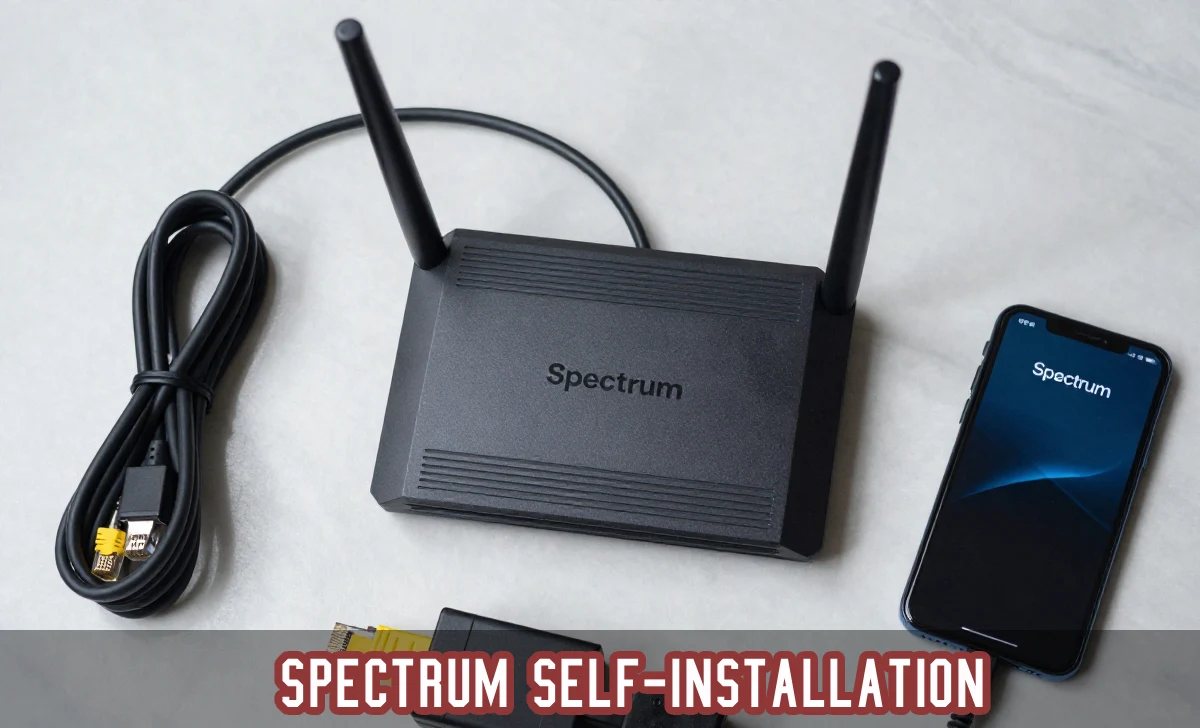
Let’s be honest: the idea of installing internet service yourself can feel a bit daunting. Visions of tangled wires, confusing tech support calls, and mysterious blinking lights might come to mind. But what if I told you that setting up your Spectrum Internet is likely one of the simplest DIY tech projects you’ll tackle?
Having walked dozens of friends and family through this exact process over the years—especially during the shift to widespread remote work—I can confirm that Spectrum self-installation is designed with the non-technical user in mind. Whether you’re a busy professional setting up a home office, a parent ensuring stable connections for school and entertainment, or simply someone who prefers to save a few bucks and get things done on your own schedule, this guide is for you.
We’ll go beyond the basic manual, incorporating the common questions, little frustrations, and “aha!” moments that come from real-world experience. By the end, you’ll not only know the steps but also understand the why behind them, turning a potential headache into a genuine accomplishment.
Why Choose Spectrum Self-Installation? Weighing Your Options
Before we open the box, let’s address the first question many have: “Should I even do this myself, or just pay for professional installation?”
The Spectrum Self-Installation Kit is a fantastic option for most people. It’s typically free with your service order, saving you the standard professional installation fee (which, while competitive with other ISPs, is still an extra cost). More importantly, it gives you immediate control. You can set up your internet the moment your kit arrives, without waiting for a technician’s appointment window.
I often recommend it to clients who ask, “Is it complicated?” The process is straightforward, but your comfort level matters. If the thought of connecting cables or troubleshooting a light that won’t turn blue makes you anxious, the peace of mind from a pro install might be worth it. However, for the vast majority, the kit’s instruction guide and 24/7 Spectrum customer service support are more than enough.
A key point, especially relevant in our world today: self-installation is a completely contactless process. From ordering your Spectrum Internet online to activating it via the spectrum.net/selfinstall portal, you can get fully connected without a single in-person interaction.
What’s in the Box? Your Pre-Installation Checklist
Your kit’s arrival is exciting! But before you start plugging things in, take five minutes for this crucial step. Lay everything out on a table. Your Spectrum self-install kit should contain:
- Modem: This is the device that brings the internet signal into your home from Spectrum’s network. It often has the Spectrum logo on it.
- Wi-Fi Router: This device takes the internet from the modem and broadcasts it wirelessly throughout your home as your home Wi-Fi network. It may be a separate unit or combined with the modem in a single gateway device.
- Coaxial Cable: A thick cable with a single, screw-on pin in the center. This connects your wall’s cable outlet to the modem.
- Ethernet Cable: Looks like a wider phone cable. It’s used to connect the router to the modem (if they are separate) or directly to a computer for a wired connection.
- Power Cables (2): Standard “brick” style power adapters for the modem and router.
- Quick Start Guide: The printed instructions.
Pro-Tip from Experience: Immediately check that each item is present. I’ve had a kit missing an Ethernet cable before. Discovering this mid-setup is frustrating. If anything is missing, call Spectrum customer service right away—they’ll expedite the missing part to you. Also, note the network name (SSID) and password on the sticker on your Wi-Fi router. You’ll need this soon.
The Step-by-Step Spectrum Setup Walkthrough
Here is your no-nonsense, experience-tested guide to getting online. Plan for about 30-45 minutes of uninterrupted time.
Step 1: Connect Your Modem to the World
- Find an active cable outlet in the room where you want your modem. If you’re unsure which outlet works, try the one where a previous cable TV or internet service was connected.
- Take the coaxial cable and screw one end firmly into the wall outlet. Hand-tight is enough; no tools needed.
- Screw the other end firmly into the port on the back of your modem.
- Plug one power cable into the modem and then into a wall socket. Press the power button if there is one.
Now, wait. This is the most important patience-testing moment. The modem will cycle through its lights. You’re waiting for the online indicator light (often labeled “Online” or with a globe icon) to turn a solid blue or white. This means it has successfully locked onto Spectrum’s network. This can take up to 5-10 minutes. Do not proceed until this light is solid.
Step 2: Bring Your Home Wi-Fi to Life (Connecting the Router)
- If your modem and router are separate units, take the Ethernet cable. Plug one end into any of the yellow LAN ports on the back of your modem.
- Plug the other end into the Internet or WAN port (often a different color, like blue) on your Wi-Fi router.
- Use the second power cable to plug in your router to a nearby socket and turn it on.
Another waiting period begins. The router’s lights will dance. You are specifically waiting for the Wi-Fi status light to become a solid blue. This signals that the router is powered on, linked to the modem, and broadcasting your wireless signal. This process can also take 5-10 minutes.
Common User Concern Solved: “What if the light won’t turn solid blue?” First, ensure all cable connections are snug. Then, try a classic tech reboot: unplug the router’s power, wait 60 seconds, and plug it back in. If the light still won’t stabilize after 15 minutes, a call to Spectrum support is your best next step—there may be a provisioning issue on their end.
Step 3: Connect Your Devices and Secure Your Network Now, for the fun part—getting your gadgets online.
- On your smartphone, laptop, or tablet, open your device’s Wi-Fi settings.
- Look for the network name (SSID) you noted earlier from the router’s sticker. You might see two: one for the standard 2.4 GHz band and one for the 5 GHz network (usually labeled as such).
- For the best performance on newer devices (like most phones, laptops, and streaming boxes), select the 5 GHz network option. It offers faster speeds and less interference, though it has a slightly shorter range than 2.4 GHz.
- Enter the password from the sticker when prompted.
Important Security Advice: Using the default password is convenient but not ideal for long-term security. Once you’re connected, I strongly advise logging into your router’s settings (the address and default login info are usually on the same sticker) to put a password on your network that is strong and unique. This keeps your connection private and secure from neighbors or potential intruders.
Step 4: The Final Gate – Activating Your Service
Your equipment is on, and your devices can see the network, but you might not have working internet yet. This is because your account needs to be activated on Spectrum’s network.
- Using a device now connected to your new Spectrum Wi-Fi (or a device connected via the Ethernet cable directly to the modem), open a web browser.
- Go to the official activation page: spectrum.net/selfinstall.
- This portal will guide you through a simple activation process, often just asking you to confirm your account details. Follow the on-screen prompts.
Real-World Tip: The activation is usually instant. If the spectrum.net/selfinstall link doesn’t automatically redirect you or seems stuck, don’t panic. Your service might already be active. Try visiting a common website like Google.com. If it loads, you’re all set! If not, Spectrum customer service is your hero. A quick call can solve activation snags in minutes.
Beyond the Basics: Ensuring a Great Experience
Your Spectrum Internet setup is complete! But let’s talk about optimization. Place your router centrally in your home, away from large metal objects, microwaves, and thick concrete walls for the best signal. If you have a large home, you might later consider a mesh Wi-Fi system for blanket coverage.
Remember, the Charter Spectrum bill pay system is easily managed online through your account, making ongoing service a breeze. And if you ever hit a bump—maybe a storm causes an outage or you want to upgrade your plan—that 24/7 Spectrum customer service is there for you.
Final Thoughts
Installing your Spectrum Internet yourself isn’t just about saving on an installation fee. It’s about empowering yourself with the knowledge of how your home network works. You’ve connected the modem, configured the router, and secured your digital front door. This foundational understanding makes you better equipped to troubleshoot minor issues in the future or confidently explain problems to tech support if needed.
By following this comprehensive guide, you’ve chosen a path that is simple, convenient, and safe. You’ve successfully navigated a modern DIY internet installation and can now enjoy your stable and fast internet connection for work, learning, streaming, and connecting with the world. Well done