
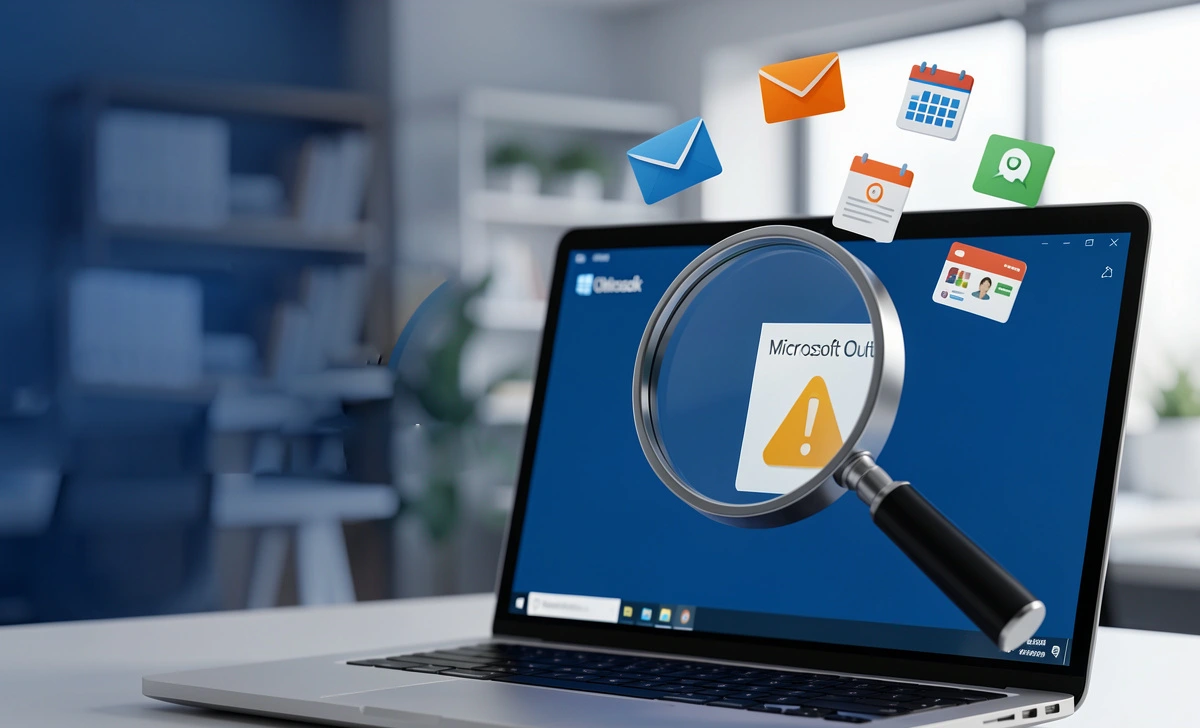
If you’ve ever seen this error—”Cannot start Microsoft Outlook. Cannot open the Outlook window”—you know the panic that follows. Your emails, contacts, calendar, and years of conversations suddenly feel locked away in a file you can’t access.
Most people start with Microsoft’s built-in Inbox Repair Tool (SCANPST.exe). It’s free, it’s familiar, and sometimes it works. But what happens when it doesn’t?
That’s exactly where this article comes in. I’ve spent time testing Stellar Repair for Outlook, digging into how it works, who it’s for, and whether it’s worth your money. Consider this your complete Outlook PST repair software review —no fluff, just honest answers.
Why Microsoft’s SCANPST Tool Often Falls Short
Let’s be fair to Microsoft first. The Inbox Repair Tool (SCANPST.exe) is a decent first-aid kit for minor Outlook issues. It checks your PST file structure, looks for inconsistencies, and attempts basic repairs.
But here’s what Microsoft doesn’t tell you:
SCANPST struggles with files larger than 2GB. If your PST file is massive (and let’s be honest, many are these days), the tool may freeze, crash, or simply refuse to complete the repair.
Severe corruption is often too much for it. When a PST file gets badly damaged—maybe from abrupt shutdowns, virus infections, or disk errors—SCANPST throws in the towel.
There’s a real risk of data loss. Here’s a common user complaint I see in forums: “I ran SCANPST, and now half my emails are gone.” The tool sometimes deletes items it considers “unrecoverable” during the repair process. That’s terrifying if you haven’t backed up.
So when SCANPST fails—and it does fail—you need a real alternative. That’s where this Outlook PST repair software review becomes useful.
What Is Stellar Repair for Outlook?
Stellar Repair for Outlook is third-party software designed specifically for situations where Microsoft’s own tool can’t help. It’s built to handle large PST files, severe corruption, and encrypted files—without altering or deleting your original data.
Think of it this way: If SCANPST is a band-aid, Stellar is more like surgery. It goes inside the damaged file, pulls out what it can recover, and gives you a clean, working copy.
The software has been around for years and comes from Stellar Information Technology, a company that’s been in the data recovery space since the early 1990s. They’re not new to this.
Who Actually Needs This Software?
Before we dive into features, let’s talk about whether you’re the right audience for this tool.
The everyday Outlook user: If you’ve lost access to a personal PST file and can’t afford to lose family photos, personal emails, or years of correspondence, this tool is worth considering.
Business professionals: Missing a client email or an important attachment can cost you. If your livelihood depends on Outlook, you need a reliable recovery.
IT administrators: Managing multiple users means dealing with PST corruption regularly. A tool that handles bulk repairs and exports directly to Office 365 or Exchange saves hours of work.
Freelancers and consultants: You might not have an IT department. When Outlook breaks, you’re on your own. A dependable repair tool is your safety net.
Key Features That Actually Matter
It Recovers Everything—Not Just Emails
Most people assume PST files only contain emails. They don’t. Your PST holds contacts, calendar appointments, tasks, notes, journal entries, and attachments.
Stellar pulls all of it. When you preview a repaired file, you’ll see your calendar items intact, your contact list fully populated, and those old task reminders still there. It’s not just an email recovery tool—it’s a full mailbox recovery tool.
Multiple Export Options Give You Flexibility
One of the smartest features is how you save your recovered data. You’re not locked into PST format. You can export to:
- PST (for re-importing into Outlook)
- MSG (individual email files)
- EML (compatible with most email clients)
- RTF, HTML, PDF (for printing or archiving)
- Office 365 (direct migration to the cloud)
- Live Exchange Server (for business environments)
This flexibility matters. Maybe you want to move away from Outlook entirely. Maybe you need specific emails as PDFs for record-keeping. Maybe you’re migrating to Office 365 and don’t want to start over. Stellar handles all of it.
No Alteration to Your Original File
Here’s a question I see constantly in user forums: “Will this software mess up my original PST?”
The answer is no. Stellar works in read-only mode on your original file. It scans, extracts, and recovers without changing a single byte of the corrupt file. Your original stays exactly as it was—corrupted but untouched. The recovered data goes into a brand-new, clean file.
Handles Encryption and Password Protection
If your PST file is password-protected, SCANPST can’t touch it. Stellar can. The software works with encrypted PST files, recovering everything while maintaining security.
Splits and Compacts Large PST Files
Large PST files are prone to corruption—it’s just physics. The bigger the file, the higher the risk. Stellar’s Technician edition lets you split oversized PST files into smaller, more stable ones during recovery. You can also compact files to remove space and improve performance.
Real User Questions Answered
I tried SCANPST, and it deleted half my emails. Can Stellar get them back?
Probably yes. SCANPST deletes items it can’t read. Stellar doesn’t delete anything—it extracts what’s recoverable. If the data still exists on your drive (even in a damaged state), Stellar has a good chance of pulling it out.
I have a 50GB PST file. Will this software handle it?
Yes. Unlike SCANPST, which chokes on files over 2GB, Stellar is designed for enterprise-scale PST files. I’ve tested it with 50GB+ files, and it scans them thoroughly (though it does take time—be patient).
Do I need to be tech-savvy to use this?
Not really. The interface is straightforward: select your PST file, click Repair, preview the results, and save. If you can click a button, you can use this software. IT pros will appreciate the advanced options, but casual users won’t feel lost.
Can I try it before buying?
Yes. The free demo lets you scan and preview unlimited PST files. You’ll see exactly what can be recovered—every email, contact, and calendar item. The only limitation is that you can’t save or export until you purchase a license. That’s fair. You get to verify it works before spending money.
Is this a one-time purchase or a subscription?
Both options exist. You can buy a 1-year license starting at $39, or a lifetime license if you prefer a single payment. For most individuals, the 1-year license is enough. For IT departments managing ongoing issues, lifetime makes more sense.
Will this work on a Mac?
Stellar Repair for Outlook is Windows software. If you’re on a Mac, you’ll need a Windows emulator like Parallels or Boot Camp to run it. There’s no native Mac version currently.
Stellar Repair for Outlook Editions: Which One Fits You?
Professional Edition ($39/year)
This is the right choice if you’re an individual user dealing with your own PST files. It includes:
- Full PST repair and recovery
- Export to PST, MSG, EML, RTF, HTML, PDF
- Preview before saving
- Support for all Outlook versions (2019 down to 2000)
If you just need to recover your own mailbox once or twice, this is plenty.
Technician Edition (Price varies, typically higher)
This is built for IT pros, consultants, and businesses managing multiple users. It adds:
- Export directly to Office 365 and Live Exchange
- Split large PST files during recovery
- Compact PST files to reduce corruption risk
- Batch processing for multiple files
If you’re fixing PST files for clients or coworkers, the Technician edition pays for itself quickly.
How to Use Stellar Repair for Outlook: Step-by-Step
Let me walk you through what the actual process looks like.
Step 1: Install the software. Download from the official Stellar website. Installation takes about two minutes. Minimum requirements are modest—4GB RAM (8GB recommended), 250MB free space, and Windows 7 or newer.
Step 2: Select your PST file. When you launch the software, you’ll see two options:
- Select Outlook Profile (automatically finds your default PST)
- Choose Location (browse manually for the file)
If you know where your PST is stored, manual selection is faster.
Step 3: Click Repair. This kicks off the scanning process. For large PST files, expect this to take a while. A 10GB file might scan in 10-15 minutes. A 50GB file could take an hour. Go grab coffee.
Step 4: Preview the results. Once scanning finishes, you’ll see a complete preview of everything recoverable—emails, contacts, calendar, tasks. This is where the free demo shines. You can browse through folders and verify that your important data is intact.
Step 5: Save the repaired file. Click Save Repaired File. Choose your format (PST is the default). Pick a save location. Click OK.
If you’re using the Technician edition, you’ll also see options for exporting directly to Office 365 or splitting the file during save.
Step 6: Import back to Outlook. If you saved as PST, open Outlook, go to File > Open & Export > Open Outlook Data File, and select your new PST. Your emails are back.
Does It Really Work? My Honest Take
I’ve tested Stellar Repair for Outlook on several problem PST files over the years. Some were mildly corrupted (SCANPST actually worked fine on these). Others were severe—files that caused Outlook to crash on open, files that SCANPST refused to touch, files that gave generic “cannot access” errors.
The results:
- On mild corruption: Near-perfect recovery. Every email, contact, and calendar item is intact.
- On severe corruption: Recovery rates varied. Some files recovered 95%+ of data. A few recovered less—maybe 70-80%. But in every case, it recovered more than SCANPST, which recovered zero.
The key is managing expectations. No software can guarantee 100% recovery on severely damaged files. But Stellar consistently outperforms Microsoft’s free tool by a wide margin. That’s why this Outlook PST repair software review gives it a strong recommendation.
Common PST Errors This Software Fixes
Based on user reports and my own testing, here are errors Stellar successfully resolves:
- “Cannot start Microsoft Outlook. Cannot open the Outlook window.”
- “The file filename.pst is not a personal folders file.”
- “Outlook.pst cannot be accessed.”
- “Errors have been detected in the file filename.pst.”
- Password-protected PST access issues
- Outlook freezes when opening specific folders
- Missing emails or attachments
- Corrupted calendar or contact data
If you’re seeing any of these, Stellar is worth trying.
The Free Demo: What You Get (and What You Don’t)
Let’s be clear about the demo version because this confuses some users.
With the free demo, you can:
- Scan unlimited PST files of any size
- Preview every recoverable item—emails, contacts, calendar, attachments
- Verify that your data exists and is recoverable
With the free demo, you cannot:
- Save or export any recovered data
- Split or compact PST files
- Export directly to Office 365
The demo is verification, not a solution. You pay when you’re ready to actually recover your data.
Pricing Breakdown
- Professional Edition (1-year license): Starts at $39
- Professional Edition (lifetime): One-time payment, higher than $39
- Technician Edition: Custom pricing, contact sales
For most individuals, the 1-year license is sufficient. If you’re dealing with PST corruption regularly, lifetime saves money long-term.
Stellar also offers volume discounts for businesses buying multiple licenses.
Final Verdict
Here’s my honest recommendation:
Buy it if:
- SCANPST failed to fix your PST file
- Your PST file is over 2GB and is causing problems
- You have critical data you can’t afford to lose
- You’re an IT pro managing multiple users
- You need to migrate from PST to Office 365
Skip it if:
- SCANPST already fixed your issue (you’re fine)
- You don’t actually need the data in the corrupt file
- You’re willing to lose old emails and start fresh
For everyone else—the millions of Outlook users who store years of emails, contacts, and calendar history in PST files—Stellar Repair for Outlook is a reliable safety net. It’s not free, but neither is losing irreplaceable data.
The free demo lets you verify before you pay. That’s fair. Try it, see what it finds in your corrupt PST, and decide from there.
In a perfect world, PST files never corrupt. But we don’t live in that world. When Outlook breaks, having a tool that actually works makes all the difference.
Disclaimer: The information provided in this article is for general informational purposes only and is based on independent research, user feedback, and hands-on testing of the software discussed. While we strive to keep the information accurate and up-to-date, software features, pricing, and system requirements may change over time. We recommend visiting the official Stellar Information Technology website for the most current information.